SharePoint Online is a powerful platform for collaborating and sharing information throughout the business, including with partners, customers, and other employees.
Because of how easy it is to use, companies often share sensitive data on this platform, which means that you must ensure it is secure.
Unfortunately, SharePoint Online has complex infrastructure that isn’t particularly easy to keep secure. Each SharePoint Online site needs to have its own policies and workflows, including permissions.
Understanding SharePoint Online permissions is critical to ensuring that you are operating on a policy of least privilege where users only have access to the data they need to do their jobs, nothing more.
This article covers three methods for generating SharePoint Online permissions reports:
- PowerShell Script – Best for one-time comprehensive audits across sites with exportable CSV output
- Site Settings (Native Method) – Quick way to check permissions for individual users on a single site
- Lepide Auditor – Ideal for ongoing monitoring, real-time alerts, and enterprise-wide reporting
How to Use PowerShell to Get a SharePoint Online Permissions Report
The best native method for producing a SharePoint Online permissions report is to run a PowerShell script. Scripts can be found online but to implement them correctly you will need a significant amount of time and PowerShell experience. Below are the basic steps required for doing this:
Prerequisites
Before running the PowerShell script, ensure you have the following:
- PnP PowerShell module installed (PnP.PowerShell version 1.x or 2.x recommended)
- SharePoint Online administrator credentials or site collection admin access
- PowerShell ISE or PowerShell 5.1+ / PowerShell 7+
- SharePoint Online Client Components SDK installed
Note: For PnP PowerShell 2.x and newer, you may need to register an Azure AD app for authentication. The -UseWebLogin parameter works with most configurations but may require adjustment based on your tenant’s security settings.
Setting Up the Environment
-
- Download and install the SharePoint Online Client Components SDK.
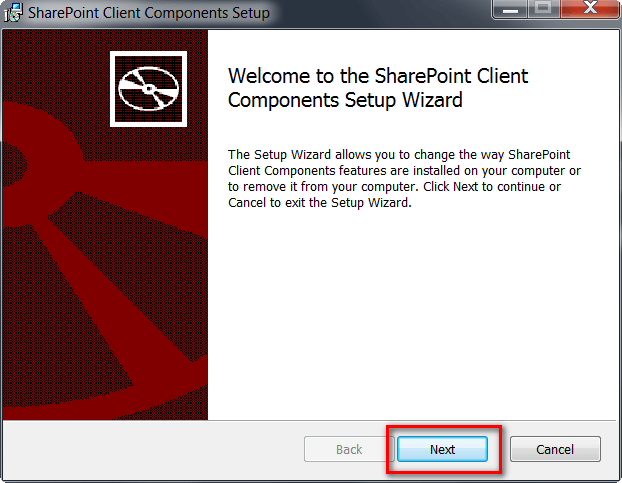
- Open the PowerShell Integrated Scripting Environment (ISE)
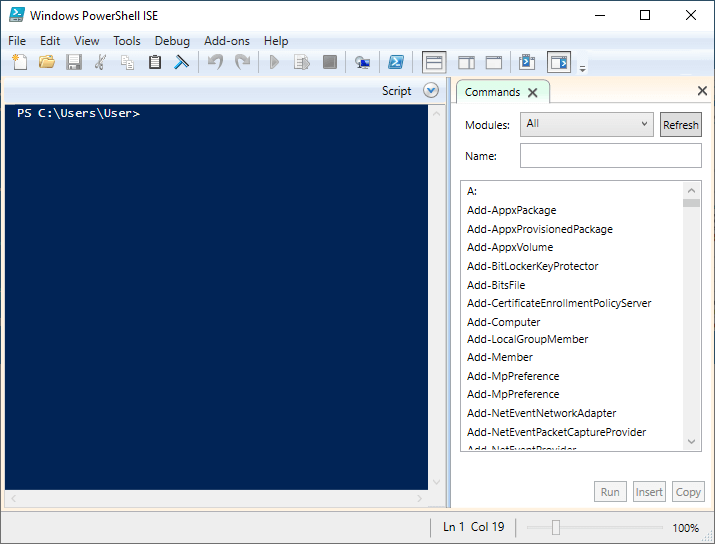
- Download and install the SharePoint Online Client Components SDK.
Running the Script
-
- Run the following script:
#Parameters

$SiteURL = "https://Adminlep.sharepoint.com/sites/ShashiTeam1_04Apr23"

$ReportOutput = "C:\Tempdir\SitePermissionRpt.csv"

#Connect to Site

Connect-PnPonline -Url $SiteURL -UseWebLogin

#Get the web

$Web = Get-PnPWeb -Includes RoleAssignments

#Loop through each permission assigned and extract details

$PermissionData = @()

ForEach ($RoleAssignment in $Web.RoleAssignments)

{

#Get the Permission Levels assigned and Member

Get-PnPProperty -ClientObject $RoleAssignment -Property RoleDefinitionBindings, Member
$PermissionLevels = ($RoleAssignment.RoleDefinitionBindings | Select -ExpandProperty Name | Where {$_ -ne “Limited Access”}) -join “,”
$PermissionType = $RoleAssignment.Member.PrincipalType
If($PermissionLevels.Length -eq 0) {Continue}
$Permissions = New-Object PSObject
$Permissions | Add-Member NoteProperty Name($RoleAssignment.Member.Title)
$Permissions | Add-Member NoteProperty Type($PermissionType)
$Permissions | Add-Member NoteProperty PermissionLevels($PermissionLevels)
$PermissionData += $Permissions
}
$PermissionData
$PermissionData | Export-csv -path $ReportOutput -NoTypeInformationNOTE: In the $Url and $Path variables, you will need to input your specific SharePoint site address and output path respectively.
- Run the following script:
Understanding the Output
-
- You should be able to now see a report that lists users, group names and permissions.
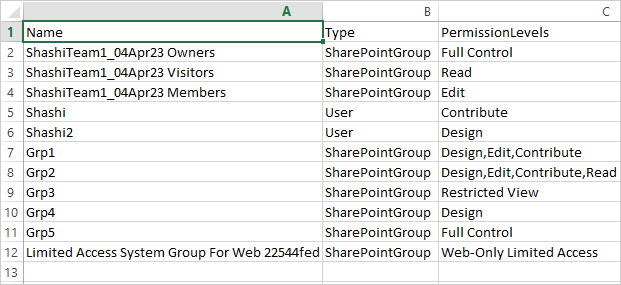
Limitations of the PowerShell Method
This script has the following limitations:
- Does not report inherited permissions at the item or folder level
- Does not capture external sharing permissions or guest access details
- Does not expand Active Directory security groups to show individual members
- Reports only site-level permissions, not library or list-specific permissions
- Requires manual execution for each site collection
Using Site Settings to Get Permissions for a User
It’s very easy to see what permissions any user has on a particular site. This functionality is built into SharePoint Online. The process is as follows:
- Go to “Site Settings”.
- Click on “Site Permissions”.
- Click on “Check Permissions”.
- Type in the name of the user or group you want to check permissions for
- Click Check Now. A list of permissions for that user will be displayed:
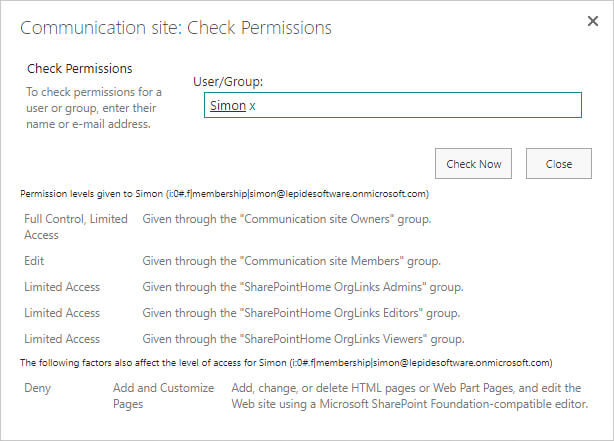
Note- Unfortunately, this method is not viable for admins wanting to get a list of access permissions for all users, so that you can spot users that may potentially have excessive permissions.
Get SharePoint Online Permissions Report Using Lepide Auditor
The native method for producing a SharePoint Online permissions report may seem like a simple one, but the actual time it will take you to do is significant.
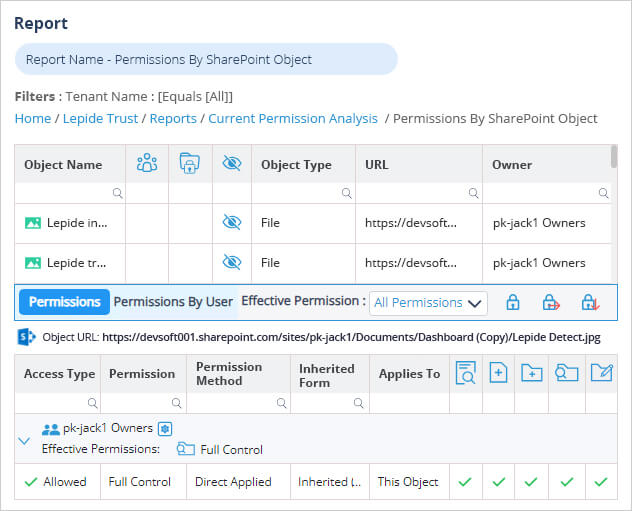
Using Lepide SharePoint Online Auditor, you can easily gete a report to show current SharePoint Permissions:
To run this report:
- Click the Permissions & Privileges icon
- Select Permissions by SharePoint Objects from the tree structure on the left
- Choose a tenant name and click Generate Report
- This report shows the permissions for the selected object. In this example, the selected object is Patient Details and the user permissions are listed in the lower section of the report
- The report can be filtered, saved and exported
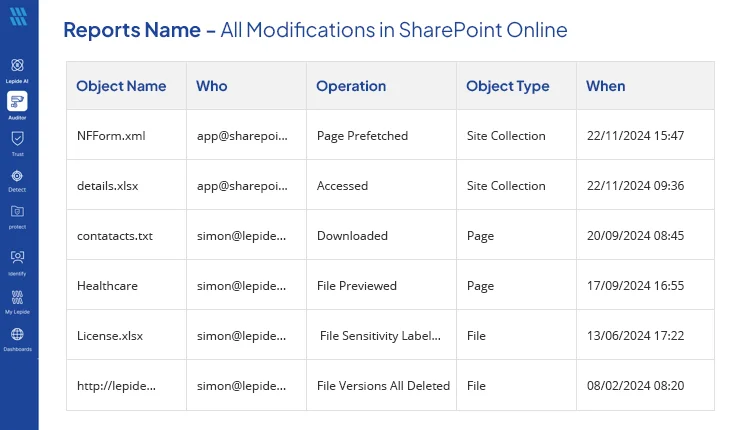
Using Lepide Auditor for SharePoint Online, you can also get report for All Permissions Changes:
To run this report:
- Click the User & Entity Behavior Analytics icon
- Select All Modifications in SharePoint Online from the tree structure on the left
- Choose a date range and click Generate Report
- This report includes information about who made the change, when it was made and what the change was
- The report can be filtered, saved and exported
Note– Whenever permissions change that could lead to over-privileged users, you will receive real time alerts straight to your mobile device or email.
Method Comparison
Key Takeaways
- Use PowerShell for one-time comprehensive audits when you need exportable CSV data across specific sites
- Use Site Settings for quick, ad-hoc permission checks on individual users
- Use Lepide Auditor for ongoing compliance monitoring, real-time alerts, and enterprise-wide permission visibility